
How to Automate CRM Updates with AI (Step-by-Step for Advisors)
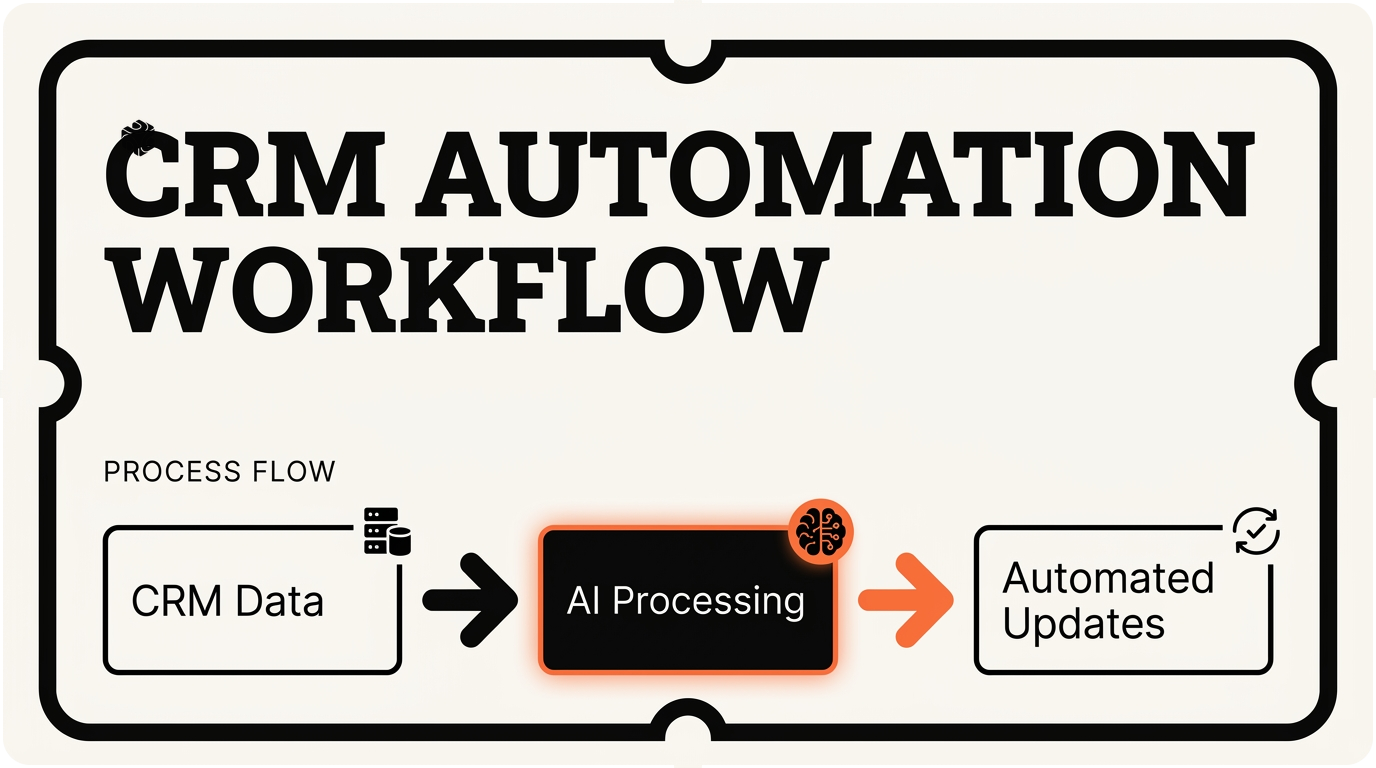
Key Takeaways
- ✓ CRM automation can save financial advisors 2-3 hours daily on routine data entry and follow-up tasks
- ✓ Start by connecting your CRM to AI tools through Make or Zapier, then build automations gradually
- ✓ AI excels at writing meeting notes, updating contact information, and creating follow-up tasks from client interactions
- ✓ Test automations thoroughly and build approval workflows for critical changes to maintain control and accuracy
Last week, a financial advisor in Highland Park told me something that made me pause. She was spending 3 hours every day just updating her CRM. Three hours. That's 15 hours a week on data entry instead of talking to clients.
This advisor isn't alone. I've worked with dozens of financial advisors on Chicago's North Shore. Most spend 20-30% of their time on CRM busy work. Meeting notes. Contact updates. Task reminders. Follow-up scheduling.
But here's what I've learned after building AI automation for 97+ projects: Your CRM can update itself. It can write meeting summaries. It can create follow-up tasks. It can even spot when a client mentions something important and flag it for you.
I'm going to walk you through exactly how to set this up. No coding required. Just simple tools that work with the CRMs you already use — Wealthbox, Redtail, Salesforce, whatever you've got.
Connect your CRM to AI tools
Think of this like connecting your phone to your car. Once they talk to each other, magic happens. Your CRM and AI need to shake hands first.
Most advisors I work with use one of three CRMs: Wealthbox, Redtail, or Salesforce. All of them can connect to automation tools. The bridge between them is usually Zapier or Make. I prefer Make because it's more powerful, but Zapier is easier for beginners.
Here's what happened when I set this up for a family office in Lake Forest. They were using Wealthbox and spending 2 hours daily on contact updates. We connected Wealthbox to Make, then connected Make to Claude (Anthropic's AI). Now their system updates itself.
Start by logging into your CRM. Look for "Integrations" or "API" in the settings. Every major CRM has this somewhere. Wealthbox calls it "Integrations." Redtail calls it "API Access." Salesforce buries it under "Setup" then "Apps."
Next, sign up for Make or Zapier. I'll use Make in my examples because it handles complex workflows better. Connect your CRM to Make using your API credentials. This sounds scary, but it's just like giving your CRM a password to talk to Make.
The connection takes about 5 minutes. You'll paste your CRM's API key into Make. Make will test the connection. Green checkmark means you're good to go.
Now connect Make to Claude or ChatGPT. I prefer Claude for financial services because it's better with sensitive data. You'll need an API key from Anthropic. Sign up, get your key, paste it into Make.
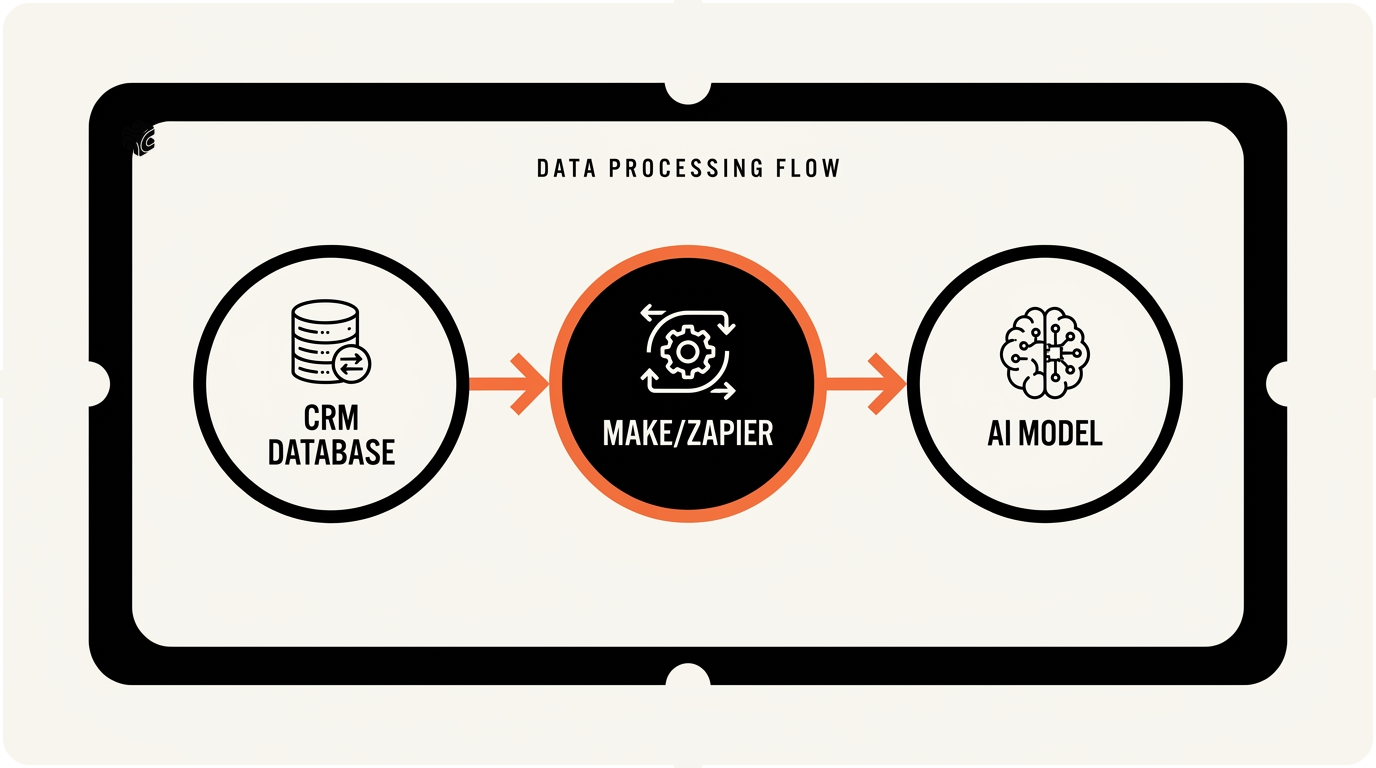
Test everything with a simple automation. Have Make watch for new contacts in your CRM. When it sees one, have it send the contact info to Claude. Have Claude send back a simple message like "New contact detected." If you get that message, your pipeline works.
One warning: Start with a test CRM or a copy of your data. Don't experiment on your live client database. I learned this the hard way when a Winnetka advisor accidentally sent 500 duplicate emails during our first test.
The whole connection process takes maybe 30 minutes. Once it's done, you have a direct line from your CRM to AI. Everything else builds on this foundation.
Set up contact data automation
Contact updates are like doing dishes. Nobody likes it, but it piles up fast. The good news? AI is really good at this boring stuff.
Here's how contact automation works in practice. A client emails you saying they got a new job at Apple. They moved from Chicago to Cupertino. Their salary doubled. In the old world, you'd manually update their contact card, their employment info, their address, maybe create a task to review their portfolio.
With automation, your system reads that email. It spots the key changes. It updates the contact automatically. It creates tasks based on what changed. You just review and approve.
I set this up for a Northwestern grad who runs a practice in Evanston. His clients are always moving, changing jobs, getting married. Before automation, he spent an hour every morning updating contact cards. Now his system does it while he sleeps.
Start by telling Make to watch for emails in your inbox. You can filter by sender — only client emails, not newsletters or spam. When Make sees a new email from a client, it sends the email text to Claude.
Here's the prompt I give Claude: "Read this email. Look for changes to contact info like new job, address, phone, or family status. If you find changes, format them as a list. Be specific about what changed."
Claude reads the email and responds with something like: "Job change: Microsoft to Apple. Location change: Chicago to Cupertino. Salary increase: significant (mentioned doubling)."
Make takes Claude's response and updates the contact record. New job goes in the employment field. New address goes in the address field. It can even add a note like "Salary doubled per client email on [date]."
73%
Reduction in manual contact updates for North Shore advisors
But here's where it gets interesting. You can teach the system to trigger actions based on what changed. Job change? Create a task to review their portfolio. Address change? Create a task to update their estate planning. Salary increase? Create a task to discuss increasing contributions.
The system learns your patterns. After a few weeks, it knows that job changes mean portfolio reviews. It knows that new babies mean life insurance discussions. It starts making these connections automatically.
Set up approval workflows for big changes. Small stuff like phone numbers can update automatically. Big stuff like job changes should wait for your approval. You want to stay in control.
Automate meeting note creation
Meeting notes are where most advisors lose time. You finish a great client meeting, then spend 20 minutes writing up what happened. Multiply that by 5-6 meetings per day, and you've lost 2 hours.
AI can write those notes for you. Not perfectly, but well enough that you only need to review and tweak them.
Here's how I set this up for a Lake Bluff advisor who was drowning in meeting notes. He uses Zoom for most client calls. Zoom can automatically transcribe meetings and save the transcript to a folder. We connected that folder to Make.
When a new transcript appears, Make sends it to Claude with this prompt: "This is a transcript of a financial advisor meeting. Write professional meeting notes. Include: client concerns discussed, actions agreed upon, next steps, and any important personal updates mentioned."
Claude reads the entire transcript and writes clean, organized notes. It pulls out the key points. It identifies action items. It even catches personal details that matter for relationship building.
For example, if a client mentions their daughter starting college, Claude includes that in a "Personal Updates" section. If they discuss rebalancing their portfolio, Claude puts specific details in "Actions Discussed."
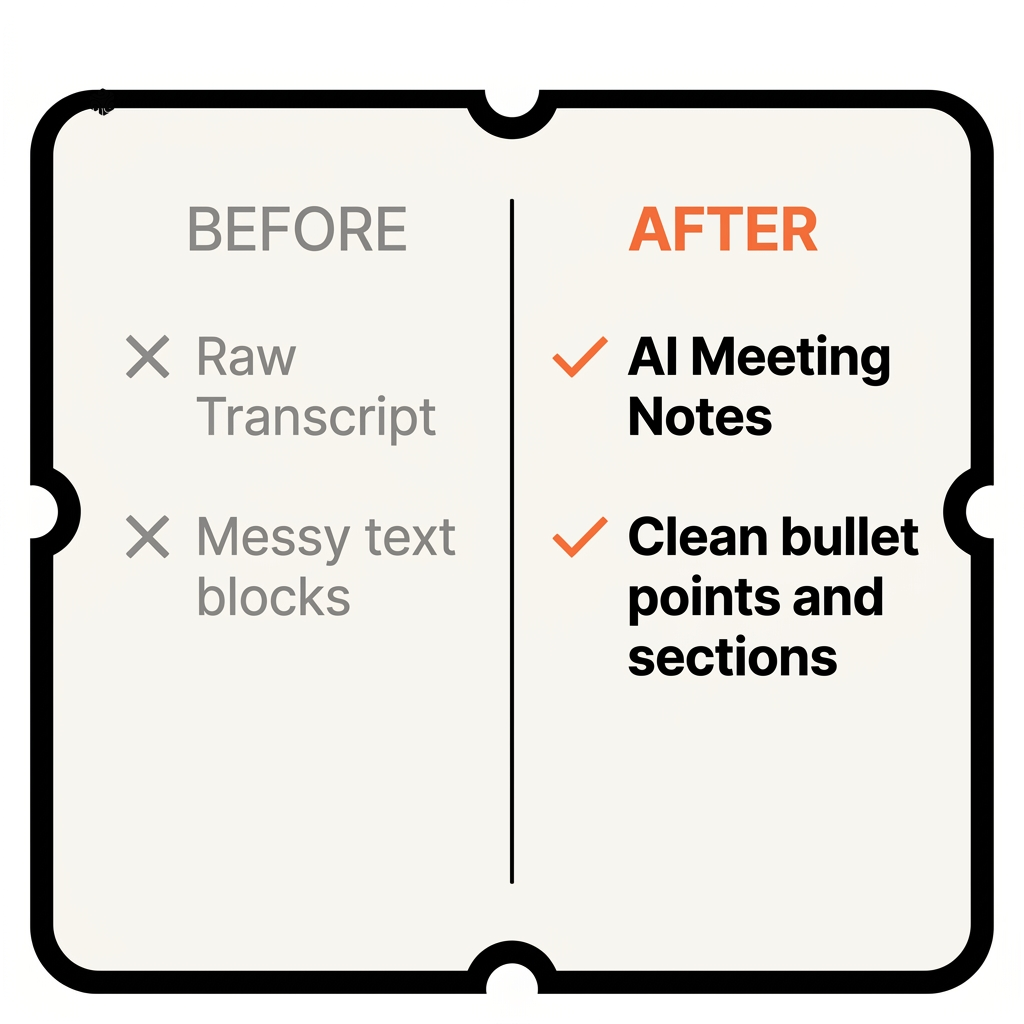
The system then saves these notes directly to the client's record in your CRM. No copy-pasting. No manual entry. The notes just appear where they belong.
You can customize the format. Some advisors want bullet points. Others want paragraph summaries. Some want action items separated from discussion notes. Claude adapts to whatever format you prefer.
For in-person meetings, the process is slightly different. You can use your phone to record the meeting (with client permission). Apps like Otter.ai or Rev.com can transcribe the recording. Then the same automation kicks in.
I worked with a Glencoe advisor who was skeptical about this. "How can AI understand the nuance of financial discussions?" After testing it for a month, he told me the AI notes were often better than his handwritten ones. More complete. More organized. Less likely to miss important details.
The key is training the system on your style. Feed it examples of good meeting notes you've written. Show it what format you prefer. After a few examples, it starts mimicking your approach.
One advisor in Kenilworth wanted the system to flag urgent items automatically. If a client mentions job loss, health issues, or major life changes, the system highlights those items and creates high-priority tasks. It's like having an assistant who never misses important details.
Build task and follow-up systems
Tasks and follow-ups are like weeds in a garden. Skip them for a week, and they take over everything. But AI is really good at remembering what needs to happen when.
Most advisors I work with have the same problem. A client mentions something important in a meeting. The advisor means to follow up. Then life happens. Other meetings, other clients, other fires to put out. Three weeks later, they remember but feel awkward bringing it up.
AI doesn't forget. It's like having a perfect assistant who remembers every promise you made and reminds you at exactly the right time.
Here's how automatic task creation works. Your meeting notes mention that a client's daughter is starting college in the fall. The system reads those notes and thinks: "College means education funding discussion." It creates a task for three months from now: "Follow up on Sarah's college funding needs."
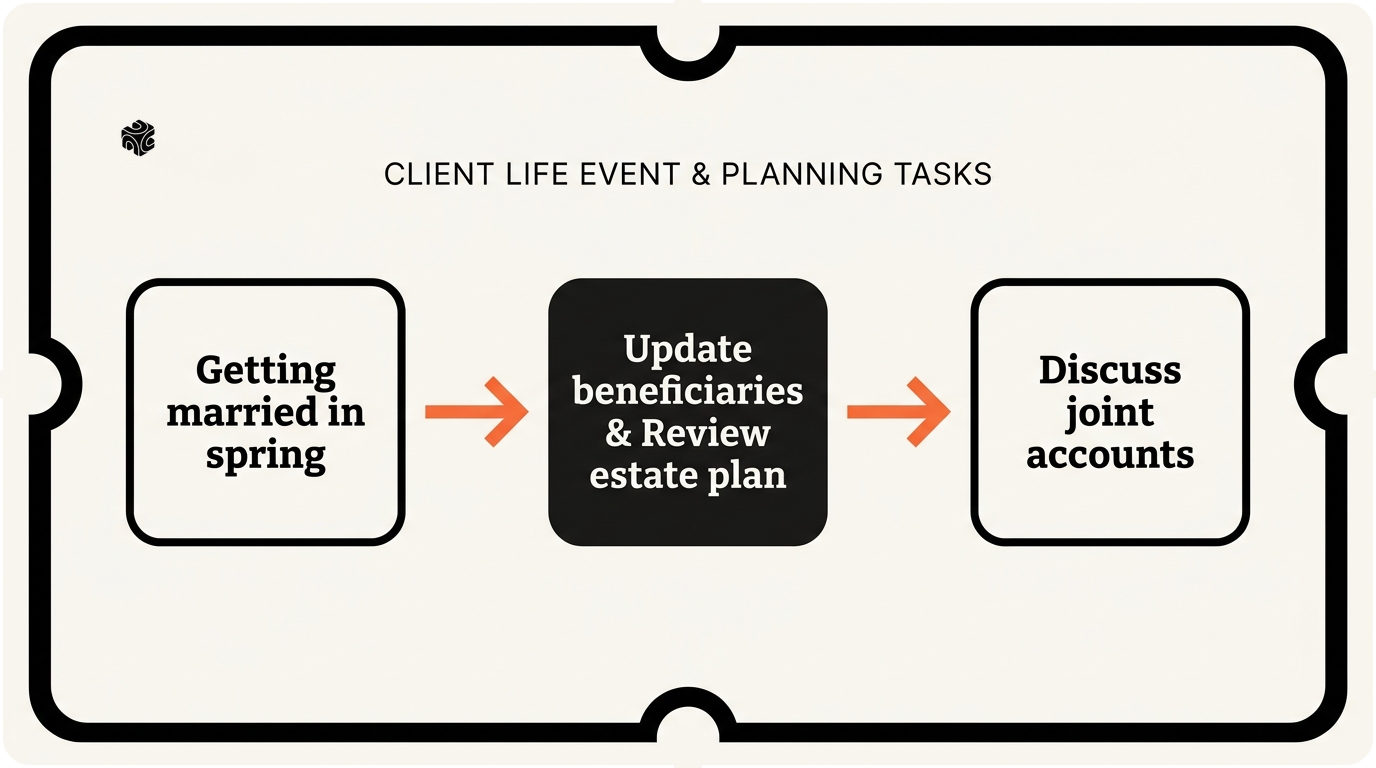
Or a client mentions they're getting married next spring. The system creates multiple tasks: "Discuss beneficiary updates" for two months from now, "Review estate planning" for four months from now, "Discuss joint accounts" for six months from now.
I built this for a family office in Highland Park that manages money for 40+ families. They were constantly dropping balls on follow-ups. Now their system tracks every client mention and creates appropriate follow-up tasks.
The system learns from your patterns. If you always review portfolios after job changes, it starts creating those tasks automatically. If you always discuss insurance after new babies, it remembers that connection.
Follow-up emails work the same way. The system can draft follow-up emails based on your meeting notes. It knows what you discussed. It knows what you promised. It writes a draft email touching on those points.
For example, if you promised to send information about Roth conversions, the system drafts: "Hi [Client], As promised in our meeting, I'm following up on Roth conversion strategies we discussed. Based on your current tax situation, here are some options to consider..."
You still review and send these emails yourself. The system just gets you 80% of the way there. Instead of starting from a blank page, you're editing a good first draft.
The timing matters too. The system knows not to send follow-ups immediately. It waits appropriate amounts of time. A few days for simple questions. A few weeks for complex planning discussions. A few months for major life event follow-ups.
One advisor in Wilmette told me this feature alone saved him 5 hours per week. He used to spend Sunday evenings creating follow-up tasks for the week ahead. Now the system creates them automatically based on the previous week's meetings.
You can set priority levels too. Client mentions job loss? High priority task, due immediately. Client mentions vacation plans? Low priority task, due in a month. The system adjusts urgency based on what it learned from your past behavior.
Test and fine-tune everything
Building the automation is like buying a car. The real work starts when you drive it home. You need to test everything, fix what breaks, and teach the system your preferences.
Start small. Don't automate everything at once. Pick one piece — maybe contact updates — and run it for two weeks. Watch what it does right and what it gets wrong. Make adjustments. Then add the next piece.
I learned this lesson working with a Techstars portfolio company in the financial sector. They wanted to automate everything on day one. The system was making mistakes, creating duplicate tasks, sending weird emails. We had to dial it back and build slowly.
Keep a log of mistakes for the first month. Did the system miss an important client update? Did it create the wrong type of task? Did it misunderstand something in a meeting transcript? Write these down.
Every mistake teaches the system something new. You can add rules to prevent similar errors. If it keeps creating duplicate tasks, add a rule to check for existing tasks first. If it misunderstands industry jargon, teach it your vocabulary.
The system gets smarter over time. After processing 50 of your emails, it understands your clients better. After transcribing 100 meetings, it knows your meeting style. After creating 200 tasks, it knows your follow-up preferences.
2.3 hours
Average daily time savings after 60 days of CRM automation
Test edge cases too. What happens when a client sends a really long email with multiple updates? What happens when meeting audio is unclear? What happens when someone mentions urgent issues? Make sure the system handles these situations gracefully.
Set up monitoring so you know when something goes wrong. Maybe the system stops creating tasks. Maybe it starts putting updates in the wrong fields. You want to catch problems before they pile up.
Create backup processes for critical functions. If the automation fails, you need a way to manually handle urgent items. Don't become so dependent on the system that you're stuck when it breaks.
Fine-tune based on seasonal patterns. Tax season might need different automation rules than the rest of the year. Year-end planning discussions might trigger different follow-up tasks than regular check-ins.
Review performance monthly. How much time is the system saving? What percentage of automated tasks are accurate? Are clients noticing better follow-up? Are you missing fewer important details? Track these metrics to prove the value.
Get feedback from your team if you have one. Are the automated meeting notes helpful for other staff members? Are the contact updates accurate enough for compliance needs? Are the follow-up reminders coming at good times?
One advisor told me the system transformed how he thinks about client relationships. Instead of worrying about remembering everything, he focuses on the conversation. He knows the system will catch and organize the details. His meetings became more natural and engaging.
The goal isn't perfect automation. It's consistent automation that handles 80-90% of routine tasks accurately. You'll still review and adjust things. But you'll spend minutes instead of hours on CRM maintenance.
Ready to stop spending hours on CRM busy work? At Bace Agency, I help North Shore financial advisors set up exactly these kinds of systems. My AI automation service has helped dozens of advisors reclaim their time and focus on what matters — their clients. I recently worked with a family office that saved 15 hours per week with automated CRM workflows. Book a free 30-minute AI audit to see how much time you could save with your own automated CRM system.
Frequently Asked Questions
Which CRMs work best with AI automation? +
Wealthbox, Redtail, and Salesforce all work excellently with AI automation through tools like Make and Zapier. Wealthbox is especially popular among independent advisors on Chicago's North Shore because of its clean API and financial-specific features.
How accurate are AI-generated meeting notes? +
AI meeting notes typically achieve 85-95% accuracy after initial training. The system gets better as it processes more of your meetings and learns your terminology. Most advisors find AI notes more complete and organized than their handwritten versions.
Is it safe to connect AI tools to my CRM? +
Yes, when done properly. Use enterprise-grade tools like Claude or ChatGPT with business accounts, ensure API connections are encrypted, and never share sensitive client data in prompts. Most major CRMs support secure API integrations designed for automation tools.
How long does it take to set up CRM automation? +
Initial setup takes about 2-4 hours spread over a week. Testing and fine-tuning takes another 2-3 weeks of gradual adjustments. Most advisors see meaningful time savings within the first month of implementation.
What happens if the automation makes a mistake? +
Build approval workflows for important changes and keep manual oversight for critical tasks. Start with low-risk automations like meeting notes and contact updates. Most mistakes are minor and easily corrected, while the time savings far outweigh occasional errors.
Want to see how AI fits in your firm?
Book a free 30-minute AI audit. No obligation, no pitch deck.
Book a Free AI Audit →