
How to Transfer Your Memory from ChatGPT to Claude

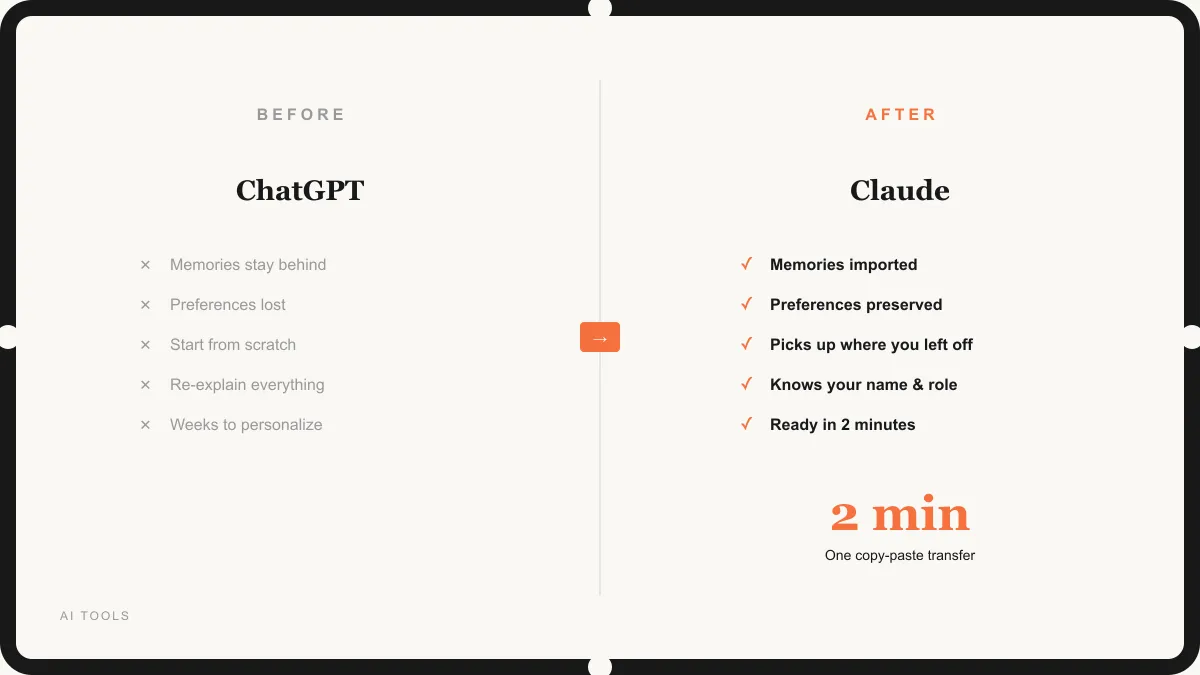
When you use ChatGPT, it learns about you. It remembers your name. It knows what you do for work. It knows how you like your answers written: short or long, casual or formal, with bullet points or without.
All of that is your memory. And if you want to try Claude, you'd normally have to teach it everything from scratch. That takes weeks of conversations before it really "gets" you.
Good news: you don't have to start over. Claude has a feature that lets you bring all of that over from ChatGPT. One copy-paste. About two minutes. And Claude will know you like you've been using it for months.
I switched to Claude for all my work at Bace Agency. This import feature saved me from re-explaining my entire workflow, my writing style, and my preferences. Let me walk you through exactly how to do it.
What Is Claude Memory?
Every time you talk to Claude, it can remember things about you: your name, your job, how you like things written, what projects you're working on.
Think of it like meeting someone new who already read your bio. You don't have to re-introduce yourself every time you start a new chat.
This memory lives in your Claude account. It stays there across every conversation. So if you tell Claude once that you prefer short answers with bullet points, it remembers that forever. You never have to say it again.
What Gets Transferred
When you export your memory from ChatGPT, here's what comes over:
- Your name and who you are, so Claude knows what to call you
- What you do for work: your role, your company, your industry
- How you like your answers: short? detailed? formal? casual?
- Any rules you've set, things like "always use bullet points" or "never use emojis"
- Projects you've told it about: what you're working on right now
- Your preferences and habits: everything from meal plans to study topics
Here's what my ChatGPT export looked like:
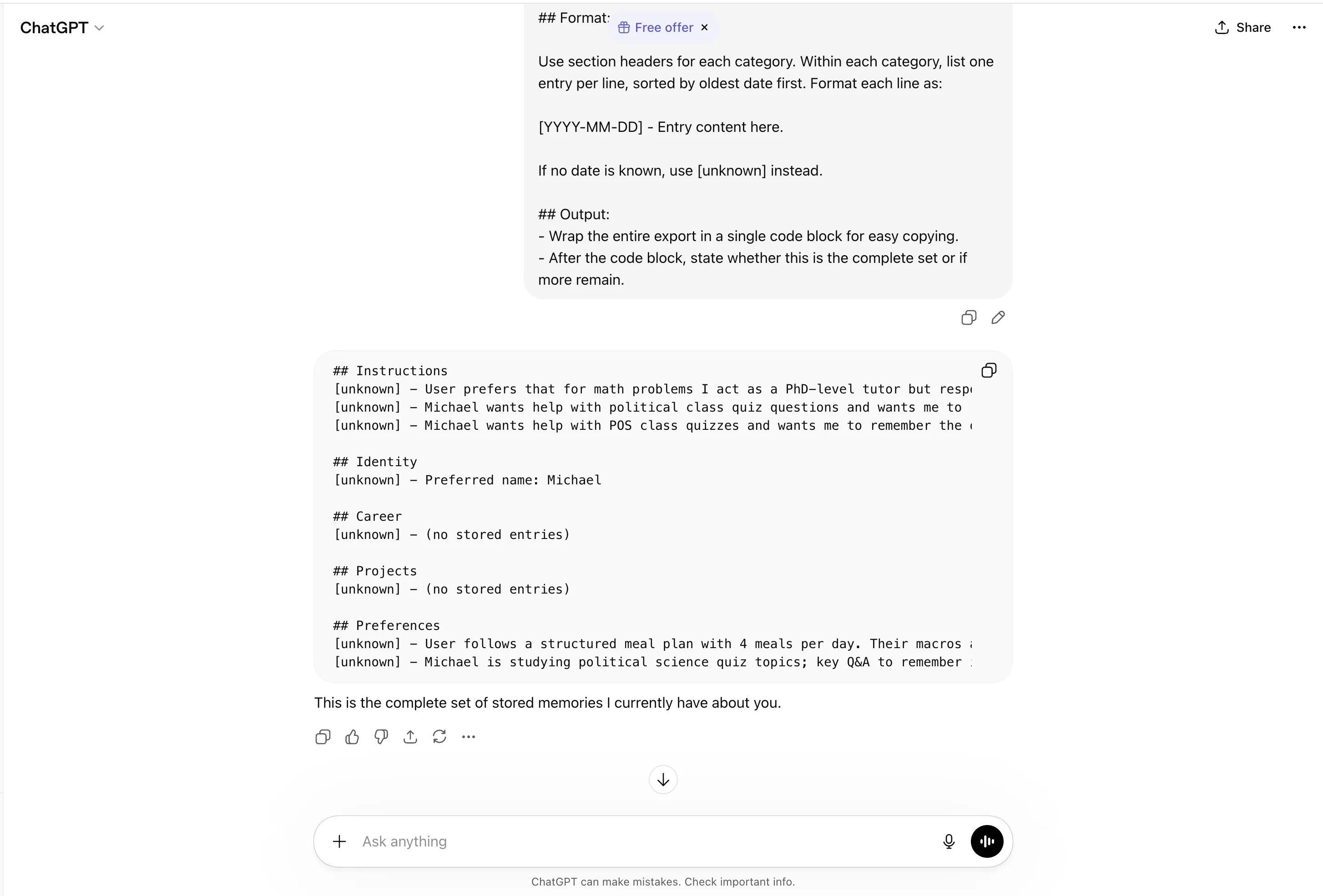
ChatGPT organizes everything into neat sections: Instructions, Identity, Career, Projects, and Preferences. All of this gets pasted into Claude in one shot.
How to Move Your Memory (4 Easy Steps)
This whole thing takes about 2 minutes. Here's exactly what to do.
Open Claude's Import Tool
- Go to claude.ai and log in to your account.
- Click Settings (it's the gear icon in the bottom-left corner of the screen).
- In the left sidebar, click Capabilities.
- Scroll down until you see a section called Import memory from other AI providers.
- Click the Start Import button.
What you should see:
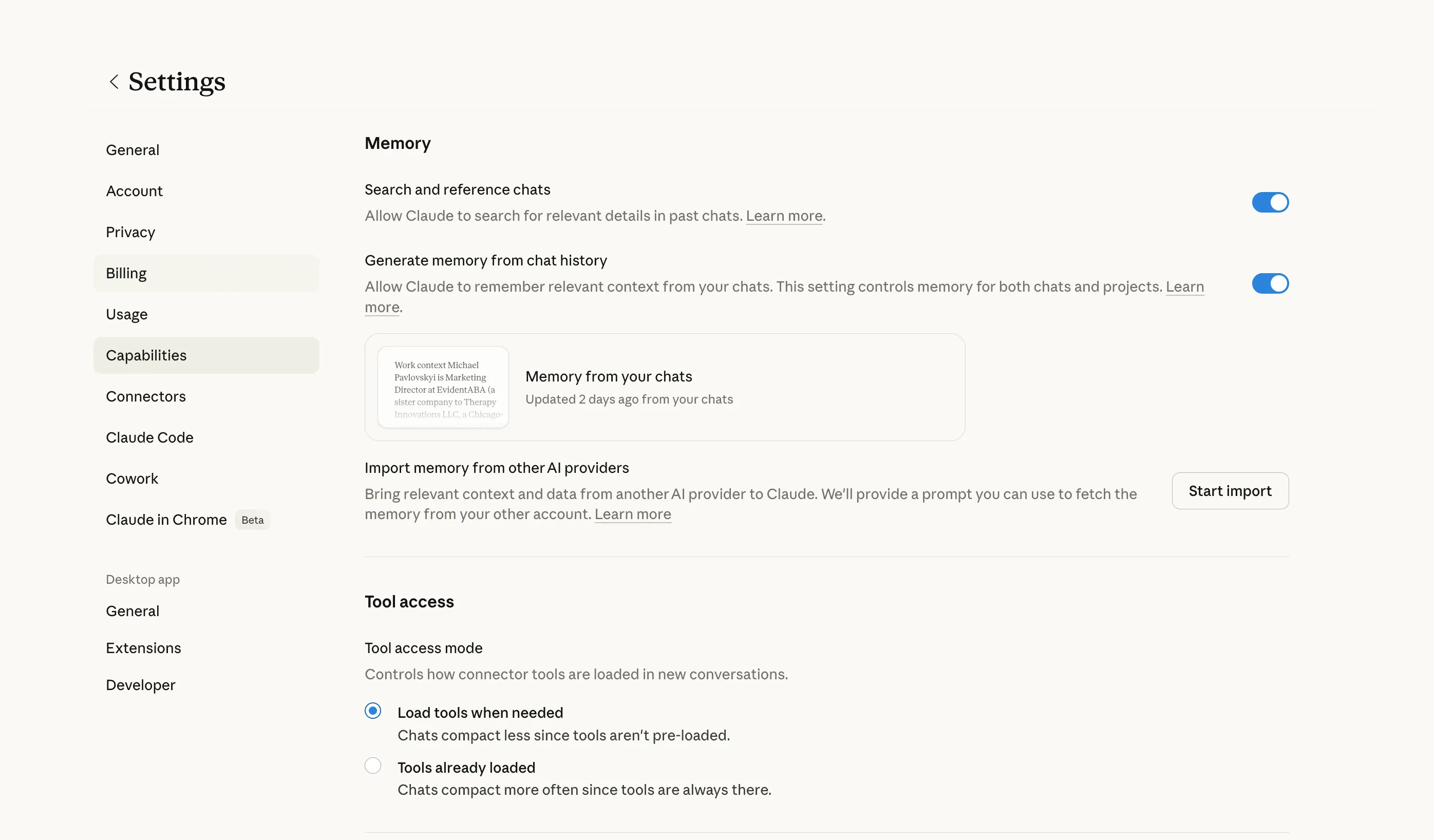
Look for "Import memory from other AI providers" and click Start Import
Copy the Magic Prompt
A popup will appear with a special prompt already written for you. You don't need to type anything. Just click the Copy button.
This prompt tells ChatGPT to export everything it knows about you. It looks something like this:
The prompt (you don't need to type this, Claude gives it to you):
"Export all of my stored memories and any context you've learned about me from past conversations. Preserve my words verbatim, especially for instructions and preferences..."
What you should see:
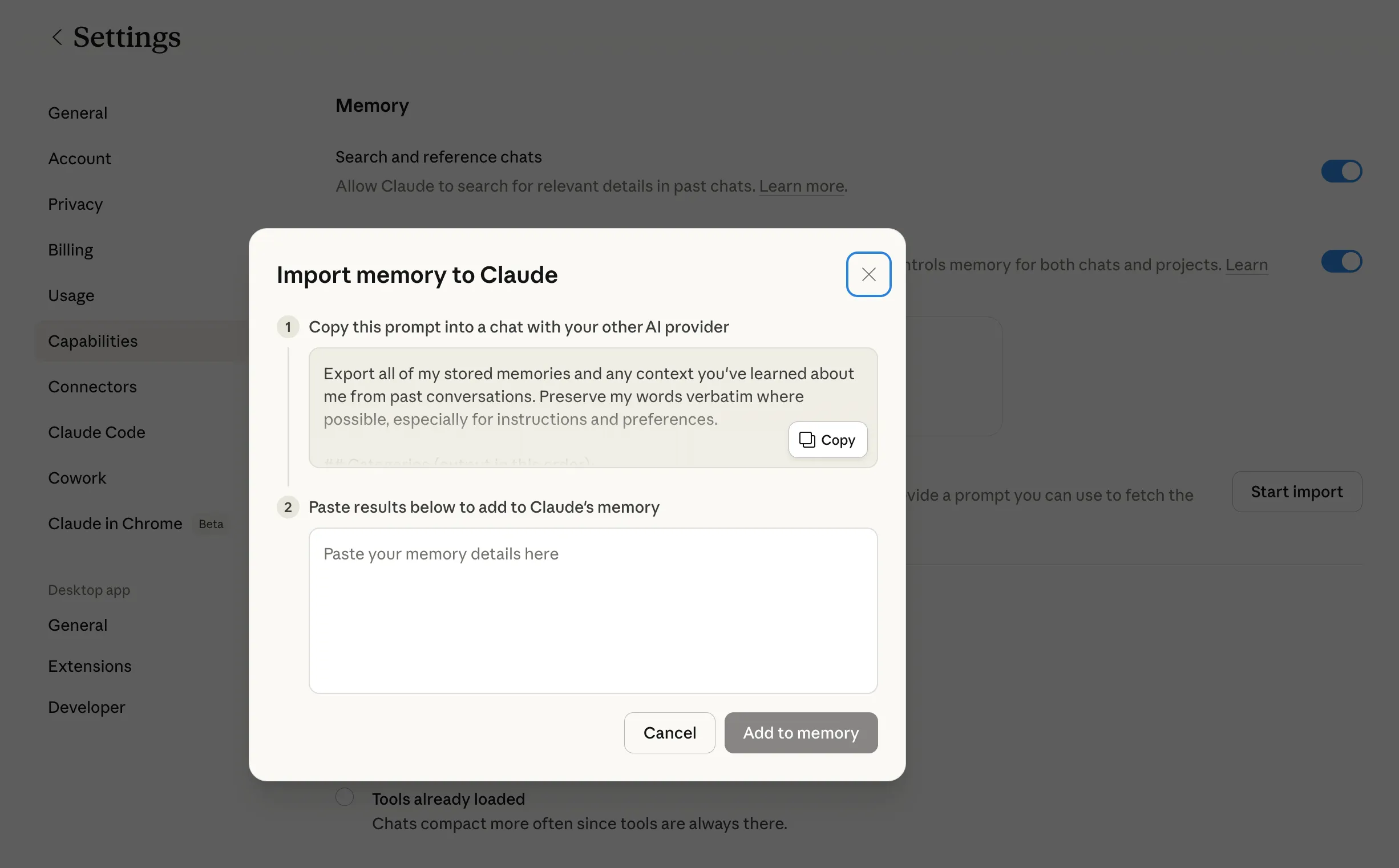
Click Copy. This grabs the prompt you'll paste into ChatGPT next.
Tip: Don't change the prompt. It's written specifically to get the best results from ChatGPT.
Paste into ChatGPT and Hit Send
- Open chatgpt.com in a new tab.
- Start a new chat.
- Click in the message box at the bottom.
- Paste the prompt: (Ctrl+V on Windows, Cmd+V on Mac)
- Press Enter to send it.
What you should see:
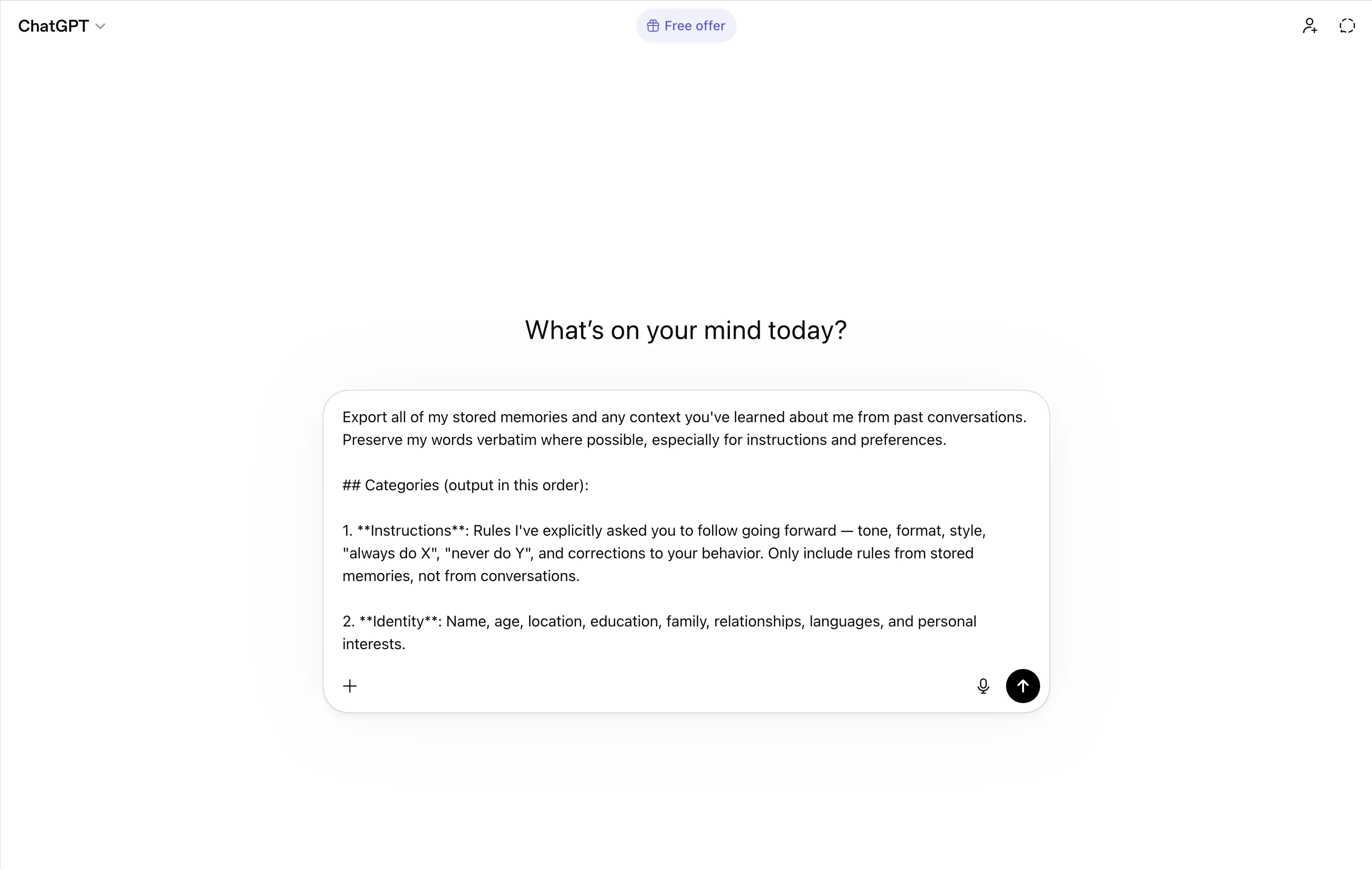
Paste the prompt into ChatGPT and hit send
Wait a few seconds. ChatGPT will respond with a big block of text: everything it remembers about you, organized into sections.
Now here's the important part:
Select all of ChatGPT's response and copy it.
On Windows: Ctrl+A then Ctrl+C
On Mac: Cmd+A then Cmd+C
Paste into Claude and Click "Add to Memory"
- Go back to the Claude tab. The import popup should still be open.
- Click inside the big text box that says "Paste your memory details here".
- Paste everything you copied from ChatGPT. (Ctrl+V, Cmd+V)
- Click the Add to memory button.
That's it. You're done.
Claude now knows who you are, what you do, and how you like to work. Your next conversation will feel like your hundredth.
Why I Switched to Claude
I'm not here to bash ChatGPT. It's a solid tool. I still use it sometimes.
But Claude is my daily driver. Here's why.
Claude writes the way I think. Short. Direct. No filler. When I ask for a draft, it doesn't pad the response with three paragraphs of context I already know. It just gives me what I need.
Claude Code is how I build at Bace Agency. It understands entire codebases, writes production-ready code, and helps me ship faster. I use it every single day to build AI automations for insurance agencies, law firms, and financial advisors on the North Shore.
Claude handles nuance better in professional contexts. Insurance compliance, legal document review, financial reporting: these are the industries I work with. Claude gets the details right without me having to over-explain.
The memory import was the final piece. Once Claude knew my name, my role, my writing style, and my projects, it felt like a tool that was built for me. That's a hard feeling to walk away from.
Quick Tips Before You Transfer
A few things to keep in mind:
- Read through the export first. Before you paste ChatGPT's response into Claude, scan through it. Remove anything that's outdated or no longer relevant.
- Delete sensitive info. If ChatGPT stored account numbers, passwords, or anything private, take that out before pasting.
- Test it right after. Once you import, ask Claude something it should now know. Try "What's my name?" or "What do I do for work?" If it gets it right, you're all set.
- You can always edit later. Claude's memory isn't locked. Go to Settings > Capabilities anytime to add, change, or delete things.
- This works with other AI tools too. The import isn't limited to ChatGPT. If you use another AI assistant that stores memories, the same process works.
Switching AI tools shouldn't feel like meeting a stranger. Now it doesn't have to. Two minutes, four steps, and Claude already knows you.
Related Articles
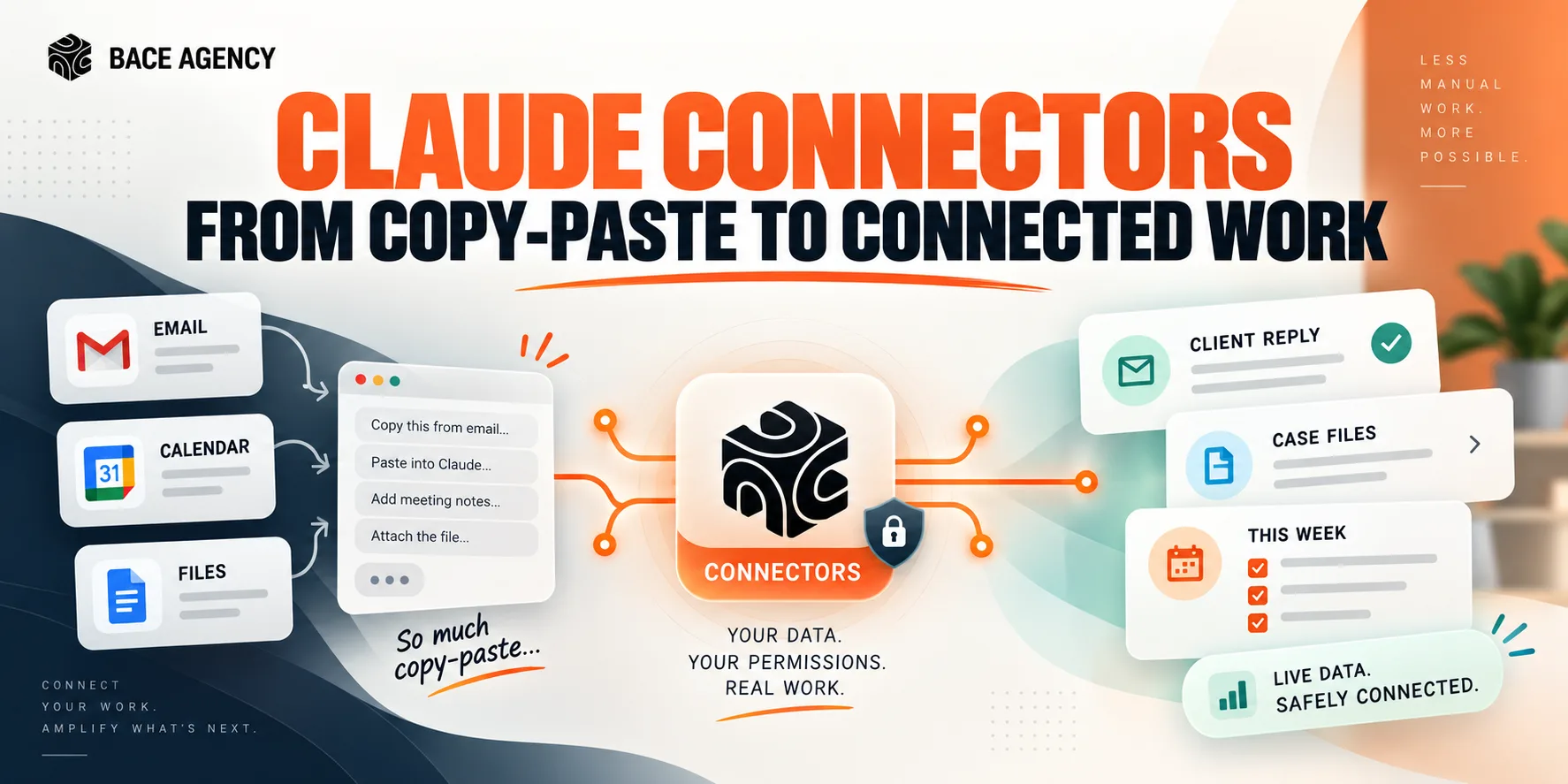
Claude Connectors for Winnetka Accounting Firms
AI stays a clever assistant until it can see your real email, files, and calendar. Connectors are that bridge, and the win depends on connecting narrowly and keeping the writes on approval.
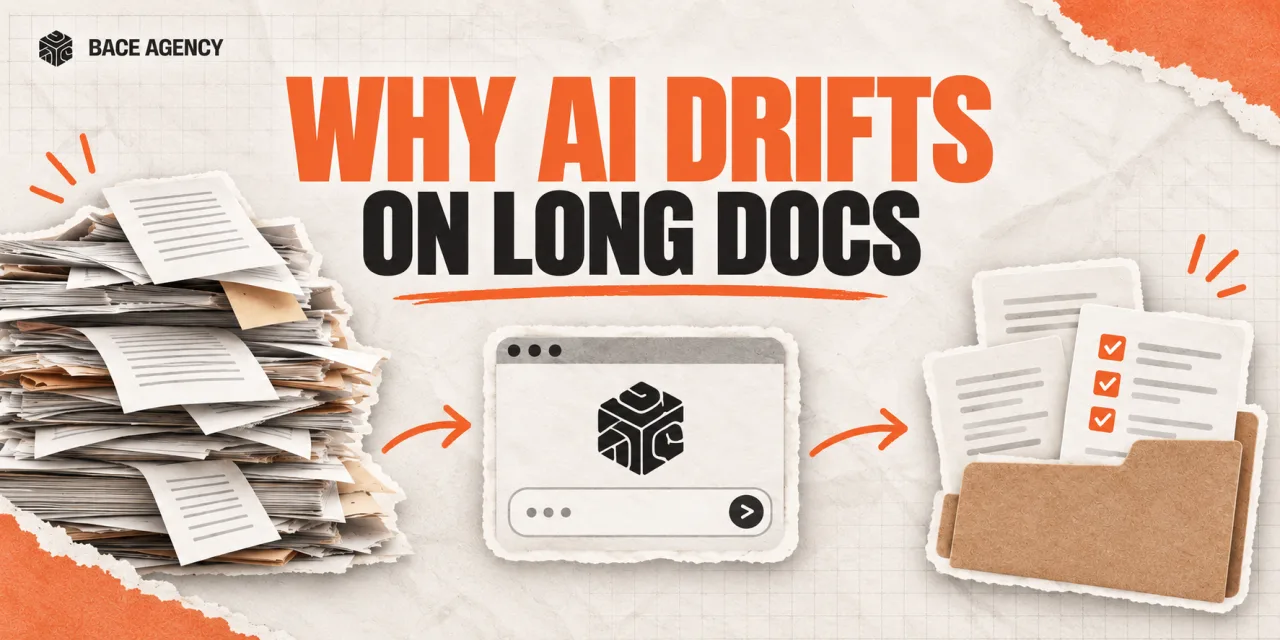
Context Windows: Why AI Drifts on Long Documents
AI answers a short question brilliantly, then gets lost in a forty-page contract. The reason is one concept, the context window, and it changes how you should feed it documents.
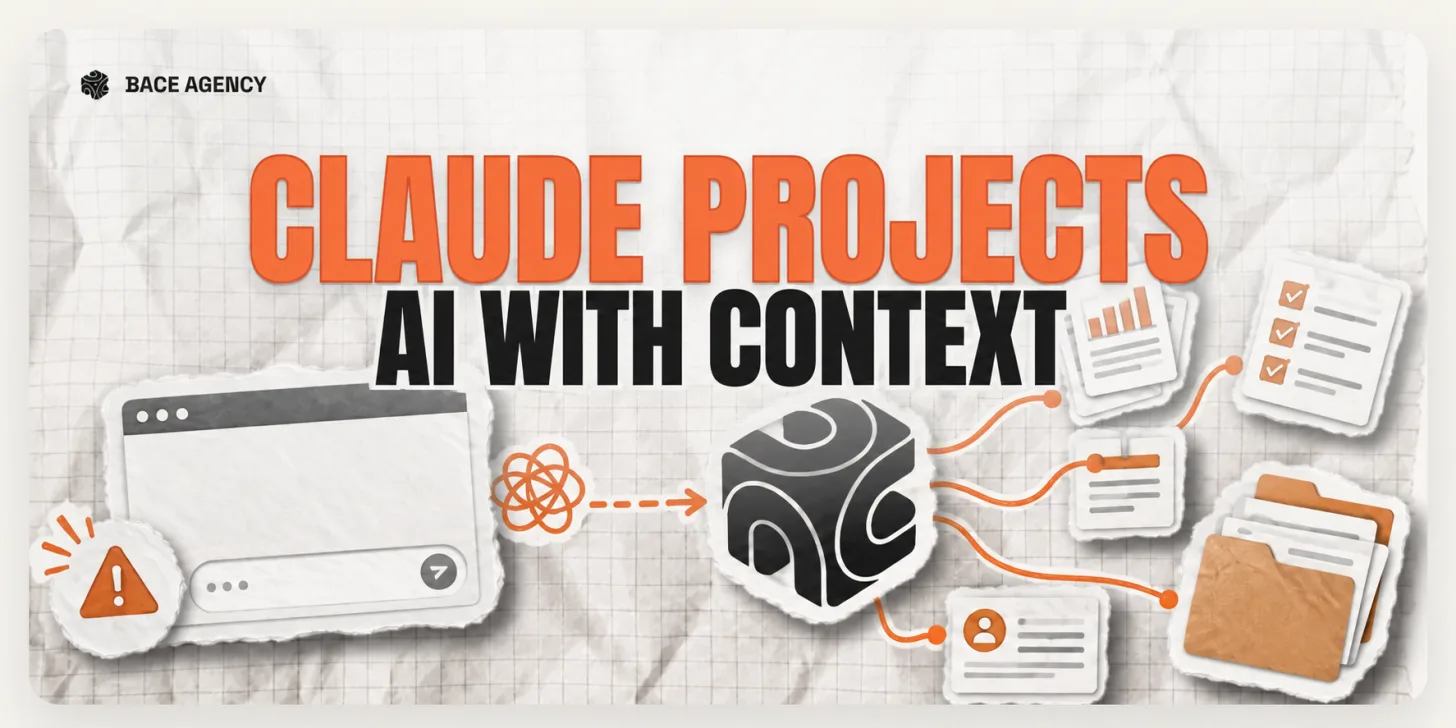
Claude Projects Fix AI That Fell Flat
Most firms try AI, see no value, and conclude it's an overhyped toy. The problem is almost always one thing: they never gave it context.
About the author

Written by
Michael Pavlovskyi
Founder, Bace Agency
Michael builds custom Claude and GPT workflows for insurance agencies, law firms, and PE firms on Chicago's North Shore. Speaker at Northwestern and Lake Forest College on practical AI adoption for professional services.
Connect on LinkedInSee it in your firm
Book an audit.
A free 30-minute AI audit. No obligation, no pitch deck.
Book a free AI audit