
Claude Connectors for Winnetka Accounting Firms
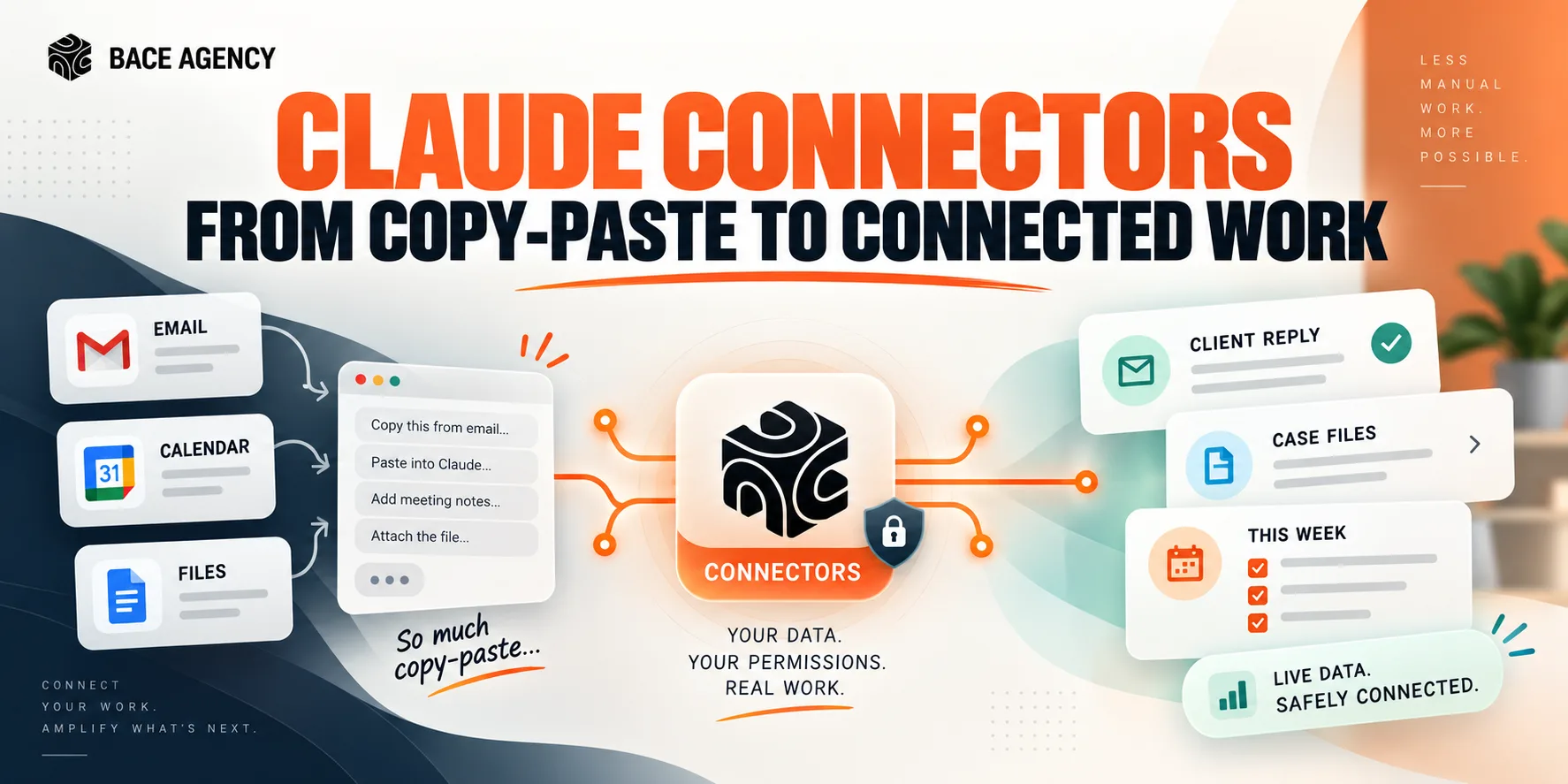
Until AI can read your real files and email, it works from yesterday's copy. Connectors close that gap, if you connect narrowly.

Key Takeaways
- ✓ Claude Connectors link the AI to your real email, file storage, and calendar, so it works from live data instead of what you paste in by hand.
- ✓ A connector inherits your existing permissions in the connected app. Claude can only see and do what you can already see and do.
- ✓ Every write action can be set to run automatically, ask for approval each time, or be blocked entirely. Set the ones that change or send anything to ask first.
- ✓ For a CPA firm, the safe path is to connect one source for one workflow, keep it read-only until you trust the output, then widen access on purpose.
If you run an accounting firm in Winnetka, you have probably tried an AI assistant and come away underwhelmed. It answered a general question well, then stalled the moment the work got real, because it could not see your files. Claude Connectors for accounting firms are the piece that closes that gap: they link Claude to your actual email, document storage, and calendar, so it stops working from a pasted copy and starts working from the live client record.
The disappointment most firm owners feel with AI is rarely the model. It is the plumbing. You find the client email, copy it into the chat, open the drive, pull the last engagement letter, then retype three dates off your calendar. Half the effort goes into hand-delivering data the AI could reach on its own. What you get back is an answer built on yesterday's copy, and only the slice you managed to hand over.
This piece explains what Connectors actually do, whether it is safe to point AI at client files, and how a small firm connects the first one without opening the whole practice. The honest headline: a connector is a real grant of access, so the setup matters as much as the tool.
What Do Claude Connectors Actually Do?
A Claude Connector is a secure link between Claude and one of your work systems, so the AI can read your data and take actions inside that system on request. In plain terms, it is the bridge between the model and the places your firm's information already lives. Once a connector is set up, Claude reaches for current information on its own, according to Anthropic's connectors documentation, rather than waiting for you to carry it over by hand.
Connectors exist for the tools most firms already run: Google Drive, Gmail, Google Calendar, Microsoft 365, Slack, and others in Claude's directory. With Google Workspace connected, Anthropic says Claude "automatically detects which tools it needs" and "retrieves the minimum information needed" when you ask a question. Instead of "let me find the client's email and paste it," you ask Claude to check the thread and draft a reply. Instead of reciting your week, you ask what is on the calendar and get an answer built on the real one.
This is the natural next step after giving Claude your firm's standing context. If you have read our piece on how Claude Projects give AI the context of your firm, Connectors are the other half: Projects teach Claude how your firm works, and Connectors let it reach the live documents that work runs on.
Is It Safe to Give AI Access to Client Files?
It can be, and the safety comes from how you connect, not from trust in the tool. A connector does not hand Claude a master key. It inherits your own permissions in the connected app, so Claude "cannot access information you don't already have access to," in Anthropic's words. There is no elevated service account reading everything at once.
The control that matters most for an accounting firm is the one on write actions. Every action a connector exposes can be set to one of three levels, and the difference is the difference between convenience and risk.
| Setting | What happens | Good fit for a CPA firm |
|---|---|---|
| Always allow | The action runs automatically, no prompt | Read-only lookups: searching Drive, reading email, checking the calendar |
| Needs approval | Claude asks permission each time before it acts | Anything that sends or changes: drafting an outbound email, editing a file |
| Blocked | The action cannot run at all | Deleting files or events, or anything you never want automated |
Before you connect anything, run what we call the three-question access test. First, what does this task actually need to read? Second, does it need to write, or only read? Third, who signs off on the writes? Answer those three and the settings above almost pick themselves. A firm that keeps deletes blocked and sends on approval has removed most of the real risk while keeping the time savings. For the wider view on why this kind of scoped access is safer than it sounds, see our explainer on why AI agents are safer than most firms assume.
"A powerful tool calls for a thoughtful setup, not an allow-everything checkbox. The difference between those two is measured in real risk to the firm."
Michael Pavlovskyi, Bace AgencyWhy This Matters for Accounting Firms in Winnetka
A Winnetka accounting firm lives on other people's paperwork: prior returns, brokerage statements, K-1s, engagement letters, and a calendar of deadlines that does not move. That is exactly the material a connector reaches, and it is why the payoff for a CPA practice is larger than for most businesses. Here are three ways a firm could put it to work, each with a prompt you could adapt.
Pulling a client's documents from where they already sit.
Instead of downloading and re-uploading files, a preparer could point Claude at the client folder in Drive and ask it to assemble what a return needs. Kept read-only, this is a pure lookup with no risk of changing anything.
SAMPLE CLAUDE PROMPT
"Look in the Drive folder for this client's 2025 return and list every source document you find. Flag anything missing that a standard 1040 with Schedule B and D would normally include."
Turning an email thread into a drafted reply.
A firm could ask Claude to read a client thread and draft a response, then review it before anything sends. With the send action set to ask for approval, a person stays in the loop on every outbound message.
SAMPLE CLAUDE PROMPT
"Read the latest thread with this client about their extension. Draft a reply that confirms the new deadline and lists the two documents we are still waiting on. Do not send it. Show me the draft first."
Reading deadlines straight off the calendar.
During filing season a firm could ask Claude what is due and when, and have it reason against the real calendar instead of a mental list. Read-only again, and it removes the recount that eats the start of every week.
SAMPLE CLAUDE PROMPT
"Check my calendar for the next two weeks and list every client deadline and review meeting, sorted by date. Tell me which days are overloaded."
How to Get Started
Pick one workflow and name what it needs
Choose a single repeatable task, such as assembling return documents. Write down the one source it touches and whether it only reads or also writes. That is the three-question access test in practice.
Connect that one source, and lock the writes
Add the connector from Claude's directory and sign in through its standard authorization prompt. Keep every write action on ask-for-approval, and block deletes. Do not connect the whole suite on day one.
Run it on real work and compare
Point it at last week's actual files and check the output against what a preparer would have produced. When it holds up, widen access on purpose, one action at a time. On Team and Enterprise plans, an owner can also authorize connectors across the whole organization.
What This Does Not Replace
A connector gives Claude reach, not judgment. It does not sign a return, it does not decide a tax position, and it does not carry professional responsibility, which stays with the licensed preparer who reviews the work. Treat its output as a fast, well-sourced first draft, not a filing. Anthropic also notes a caveat worth reading: on consumer plans where model training is turned on, content you copy out of connected apps may be used to improve the models, so a firm handling client data should confirm its plan and settings before connecting. Some data and some tasks simply should not be automated at all, a line we drew in our piece on what North Shore firms should not automate.
Start with one connector, one read-only workflow, and one week of real files. If the output earns your trust, widen it deliberately, keeping the writes on approval and the deletes blocked. If you want a second set of eyes on which workflow to connect first and how to scope its permissions, book a free 30-minute AI audit in person on the North Shore or by video.
Frequently Asked Questions
What are Claude Connectors for accounting firms? +
Claude Connectors are secure links between Claude and a firm's work systems, such as Gmail, Google Drive, Google Calendar, and Microsoft 365. For an accounting firm they let Claude read live client documents, email, and deadlines and take actions on request, instead of relying on data pasted in by hand.
Can Claude access files I am not allowed to see? +
No. A connector inherits your existing permissions in the connected app. Anthropic states that Claude "cannot access information you don't already have access to," so a connector never widens what a given user could already reach.
Does Anthropic train its models on my connected data? +
Anthropic says it does not train its models on your Gmail, Drive, or Calendar connector data. It notes one exception on consumer plans: if model training is enabled, content you copy and paste out of those apps may be used to improve the models. A firm handling client data should confirm its plan and settings first.
How do I stop Claude from sending or deleting things automatically? +
Each connector action can be set to always allow, needs approval, or blocked. Set anything that sends or changes data to needs approval so Claude asks before acting, and block deletes. Read-only lookups can stay on always allow for speed.
Which connector should a small firm set up first? +
Start with the source behind your most repetitive task, usually document storage such as Google Drive, and keep it read-only. Prove the value on real files for a week before adding email or calendar and before turning on any write action.
Related Articles
Context Windows: Why AI Drifts on Long Documents
AI answers a short question brilliantly, then gets lost in a forty-page contract. The reason is one concept, the context window, and it changes how you should feed it documents.
Claude Projects Fix AI That Fell Flat
Most firms try AI, see no value, and conclude it's an overhyped toy. The problem is almost always one thing: they never gave it context.
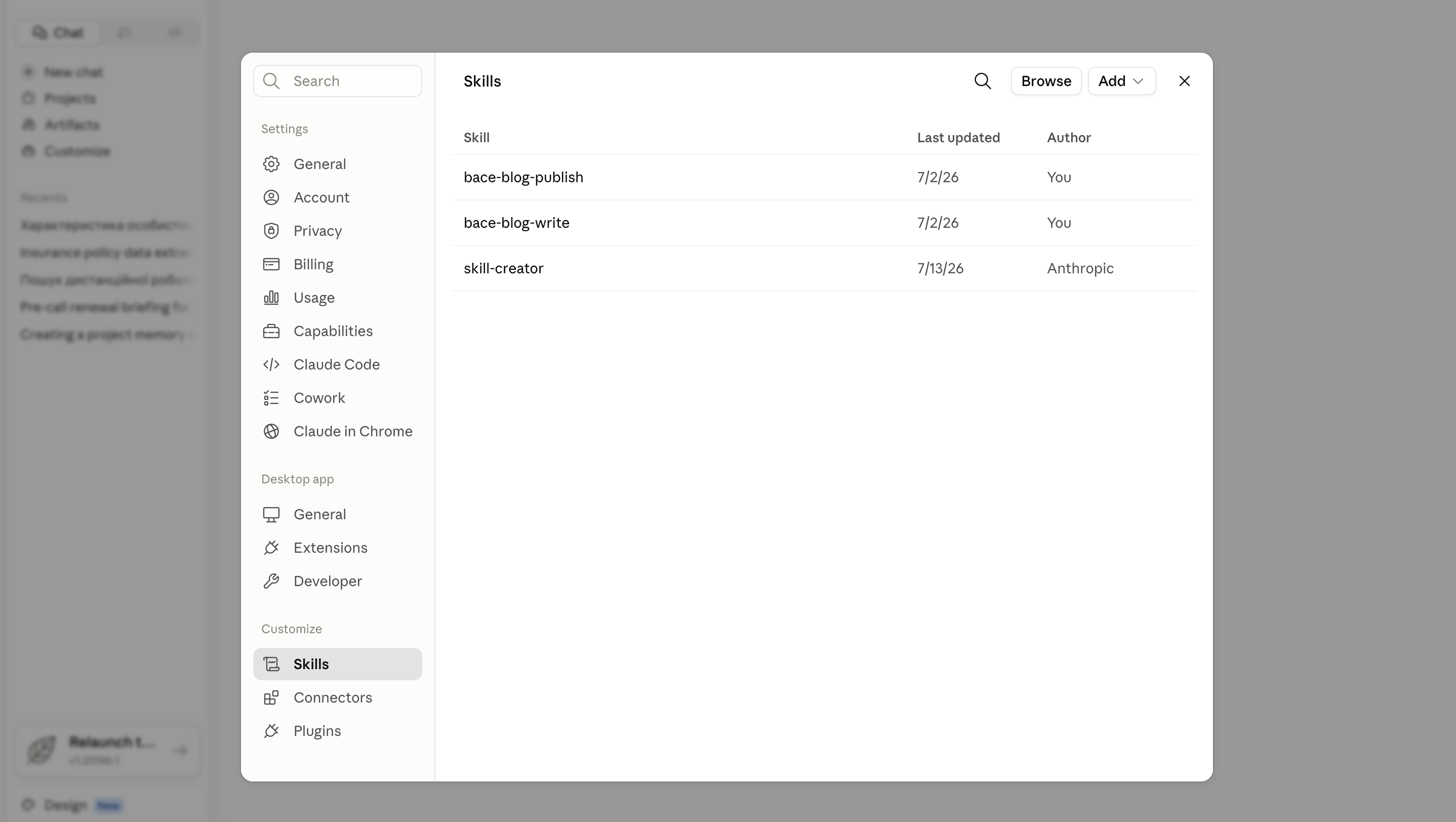
How to Build and Effectively Use Claude Skills for Your Team
Someone writes a sharp prompt, and by Friday nobody remembers the wording. A Claude Skill turns your team's best prompt into a standing instruction Claude follows every time. Here is how to build and share one, no code and no developer.
About the author

Written by
Michael Pavlovskyi
Founder, Bace Agency
Michael builds custom Claude and GPT workflows for insurance agencies, law firms, and PE firms on Chicago's North Shore. Speaker at Northwestern and Lake Forest College on practical AI adoption for professional services.
Connect on LinkedInSee it in your firm
Book an audit.
A free 30-minute AI audit. No obligation, no pitch deck.
Book a free AI audit